
All categories


Want to create an embeddable calculator for your website without writing any code? You’re in the right place.
Increasing conversion rates by embedding a calculator widget on your website doesn’t have to be hard. With Convert_, you can add a calculator to your website in just 3 steps.
We make it straightforward to create one and simple to embed on your website or landing page.
Sounds good, right? Here’s how you do it.
Quick Start (Create an Embeddable Calculator)
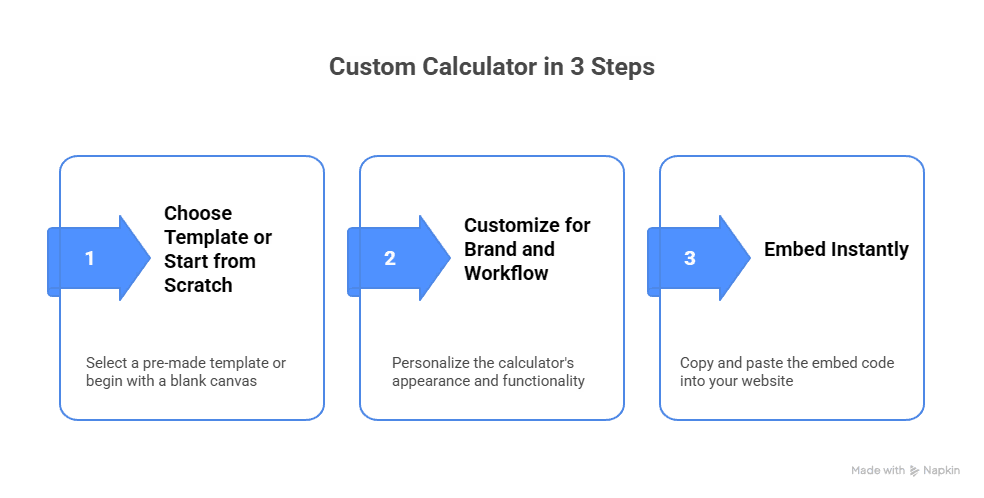
Build your custom calculator and embed it in 3 steps:
Choose a Ready-Made Template: Open the Convert_ builder and select a template.
Customize for Your Brand and Workflow: Personalize layout, size, colors, and fonts so your calculator looks and feels like an extension of your website. Edit the calculation logic, input fields, and output options to match your business (no coding needed).
Embed Instantly (Without Developers): Click “Add to Website,” then simply copy your unique embed code and paste it into your website or landing page.
Voila, you have a custom calculator embedded into your website.
If you’re pressed for time, Convert_ offers a concierge service. Work with experts who create and integrate your calculator for you.
Create a powerful, customized calculator like this one for your own website...
Choosing the Best Embeddable Calculator for Your Site
Selecting the best embeddable calculator for your business starts with your goals. Of course, the ideal calculator should deliver the specific calculations your customers are looking for.
A big part is choosing a calculator that meets your needs, while ensuring it’s easy for you to get it live on your site. This may mean considering features like dropdown menus, conditional logic, and customizable fields. And working with templates to simplify the building process.
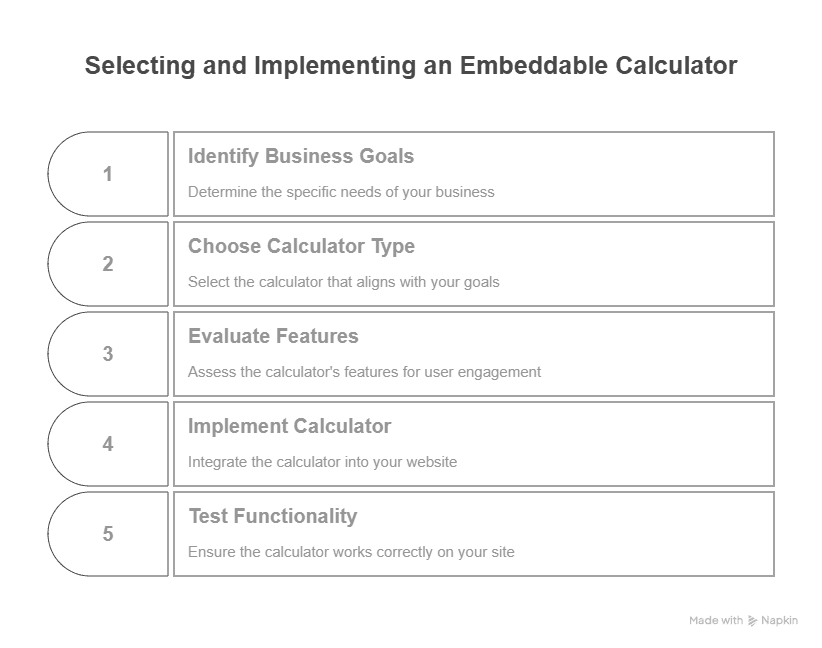
These 5 points will help guide you when selecting and implementing a calculator for your website:
Identify business goals
Choose calculator type
Evaluate features
implement calculator
Test functionality
Our templates make it even easier to select the best calculator for your website. Here are 5 popular calculator templates you may want to choose from:
1. Carpet Cleaning Estimate
This estimate calculator isn’t only perfect for carpet cleaning businesses. If you run another service business or you’re a contractor, you can easily customize the template to suit your needs.
The calculator lets customers get instant estimates and helps you generate qualified leads.
Start with the carpet cleaning estimate template...
LBkGt4HRfSXZFzRcS
2. Mortgage Calculator
If you’re involved in the real estate or finance industries, a mortgage calculator is a must-have, right? Potential clients need to quickly estimate their monthly mortgage payments based on their circumstances.
Our mortgage calculator widget is ready for your prospects to use and get the information they need.
Start with the mortgage calculator template...
H8g3ssDs57kE3XLB2
3. Solar Price Quote
Run a solar company? This price quotation calculator lets your potential customers instantly generate custom quotes based on selected services or features. It helps you generate and qualify serious leads.
Like our other calculators, you can customize this for different services. So it’s helpful even if you’re not in the solar business.
Start with the solar price quote calculator...
BrM5LNLmG7GS8mxEj
4. Website ROI Calculator
This ROI calculator works well for agencies or freelancers offering sales and marketing services. It helps potential customers get insights into the current ROI of their website and see the value your services deliver.
Customizing the template across services is easy, and it’s also useful for consultants and even SaaS companies.
Start with the website ROI calculator...
GvQ6kWfGK8pzCKdFT
5. Pool Estimate Calculator
Pool builders, installers, and retailers get tons of value from this calculator. And personally, it’s one of my favorites. Your potential customers get instant pricing on selections such as pool size, features, finishes, and more.
The visualization is one of the factors I love. Users can imagine themselves relaxing by the pool, so the calculator is persuasive and practical.
Start with the pool estimate calculator...
hWknsudBHYzBXECnj
Configuring and Customizing Your Calculator
Once you’ve selected your calculator, you’ll want to configure and customize it. This lets you change the inputs and outputs to match your business (such as services and pricing).
With Convert_, you can adjust everything in the template, from the color scheme and font to the layout and calculation logic.
Set the calculator to perform calculations related to your business logic and based on the data users provide.
Customize your calculator to match your website’s style and branding.
Configuring and customizing your calculator lets you deliver a user experience that feels intuitive and professional. And you get useful data specific to users’ needs and preferences.
Using a no-code builder like Convert_ makes it easy to set up your calculator.
How to Embed a Calculator Into Your Website
When you create a calculator with Convert_, it embeds into any website. The process is slightly different, depending on your CMS.
Here, we’ll show you how to embed into popular platforms: WordPress, Framer, and Wix. You first need to have a published calculator and a “Calculator ID” for the embed.
Embedding your calculator on a WordPress website
Preferred method...
Our plugin is optimized for the native WordPress Gutenberg editor and the Elementor page builder:
In your website's admin area, navigate to plugins, and click on the "Add new" button.
Search for the plugin "ConvertCalculator", click on "Install now," and when it's installed, click on "Activate".
On the page where you want to display the calculator, add the ConvertCalculator widget.
Paste in your “Calculator ID” into the input field (in the left margin under “content”).
Manual method...
Go to the editor of the calculator you want to embed on https://www.convertcalculator.com/app.
Navigate to the “Install Tab” via the menu on the top-right of the screen.
Select "Other" for a platform.
Copy/paste the embed code that appears on the screen.
Go to the page or post on your WordPress website via the WP Admin.
Find the "Custom HTML" option and paste the embed code where you want the calculator to appear.
NB. If you already have the ConvertCalculator plugin installed, disable it before you manually embed the calculator.
Embedding your calculator on a Framer website
We built a Framer plugin that makes embedding your calculator easy:
Navigate to the Convert_ app, and open your calculator.
Go to Share → Embed, and copy your Calculator ID.
Open the plugin window within Framer and search for “Convert: Custom Calculators” or add the plugin to your website from the Framer Marketplace.
Paste in the Calculator ID.
Give the Embed component the desired width and height, so the embedded calculator works according to your responsive design. We advise placing your calculator within a Stack and giving the Embed component a width of 1fr and a height of fit.
Embedding your calculator on a Wix website
We built a Wix plugin that makes embedding your calculator easy:
Navigate to the Convert_ app, and open your calculator.
Go to Share → Embed, and copy your Calculator ID.
Open the “Add Apps” window within Wix and search for “Convert: Calcs & Configurators”, or add the plugin to your website from the Wix Marketplace.
Paste in the Calculator ID.
Give the Embed component the desired width and height, so the embedded calculator works according to your responsive design. Be sure to update the width and height of your calculator in the Wix mobile breakpoint to ensure your calculator also works as expected on mobile devices.
iAv2yPwxmbx9wbgpP
Where to Embed for the Biggest Returns
The placement of your calculator is just as important as its design.
Best Practices for Maximum Impact:
Key Product/Service Pages: Add at the top of the page for instant engagement. A/B testing shows calculators placed above the fold get up to 100% higher conversions vs. buried calculators.
Dedicated Landing Pages: Perfect for ad campaigns or promotions. Calculators convert 20% more leads than static forms.
Email Follow-Ups: Bring cold leads back with a direct calculator link (remind them of the value).
E-commerce/Product Selectors: Help buyers estimate true costs for complex or custom orders upfront on your product pages.
Pro tip: Test placements and track conversions (our native analytics make this easy).
End-to-End Business Automation
An embeddable calculator widget isn’t just for quoting. They help you automate processes across your business (from custom pricing, bookings, payments, trade orders, reviews, and more).
Exceptional Speed: Go from idea to live, automated solution in minutes, not weeks. Launch powerful tools without IT delays.
Powerful Flexibility: Automate everything from quoting and product configuration to lead intake, bookings, and secure payments. Adapt to any business logic or workflow.
Automated Workflows: Integrate your calculators with popular CRMs, email tools, analytics, and project management platforms. Build full, automated workflows that eliminate manual data entry, reduce errors, and save hours every week.
In this video, we demo how to build a loan calculator:
Real Calculator Outcomes
rHTcgavwk5Z75GPih
Convert_’s Powerful Features
Convert_ is built for business teams (from solo founders to fast-growing companies) who need powerful calculators and process automation that anyone can create and manage, no code required.
Advanced Formula & Logic Engine: Build unlimited calculation logic, set up multi-step processes, conditional flows, complex pricing tiers, and business rules that go well beyond typical spreadsheets.
Enable or Disable Calculator for Specific Questions: Configure the calculator to be enabled or disabled for individual questions or entire assessments, allowing for a tailored user experience.
Integrations for Seamless Workflow Automation: Push data automatically to your CRM, email, analytics, or operations apps; automate follow-ups, notifications, and more with Zapier and native integrations.
Mobile and Responsive: Every calculator works perfectly on mobile, tablet, and desktop devices for a consistent user experience anywhere.
Analytics & Insights: Track every interaction, including usage stats, drop-off points, and conversion rates to optimize and grow your results.
Easy Embedding Everywhere: Add calculators to any website (WordPress, Shopify, Squarespace, Webflow, or any HTML site) in just a few clicks.
Developer Vs. No-Code
4XaCLgS8mhi4p7tH2
What Are Embedded Calculators?
Custom embedded calculators are interactive tools you can add to your website or landing pages. They let visitors perform calculations, such as cost estimates, savings, or ROI, directly on your site.
Also known as calculator widgets, they're designed to improve the user experience by providing instant, relevant information.
Whether you want users to calculate the cost of a service, estimate potential savings, or understand pricing options, an embeddable calculator widget makes it easy and engaging.

Integrating an embeddable calculator makes your website more interactive and converts more visitors into qualified leads. Calculators can be fully customized to match your website’s look and feel.
From finance and real estate to e-commerce and professional services, embedded calculators have become essential for businesses. They provide value, build trust, and drive more leads from your website.
Creating a powerful, customized calculator for your own website with Convert_.
Use Embedded Calculators Today
A web calculator is a versatile tool. It helps you collect leads, give accurate quotes 24/7, and make bookings online.
They engage your audience, automate tasks, and boost conversions. Use them as growth catalysts for your business.
Ready to harness their power?
Don't miss this opportunity to engage, automate, and grow. Book a demo to find out how you can start or create your calculator widget today.
Want to create an embeddable calculator for your website without writing any code? You’re in the right place.
Increasing conversion rates by embedding a calculator widget on your website doesn’t have to be hard. With Convert_, you can add a calculator to your website in just 3 steps.
We make it straightforward to create one and simple to embed on your website or landing page.
Sounds good, right? Here’s how you do it.
Quick Start (Create an Embeddable Calculator)
Build your custom calculator and embed it in 3 steps:
Choose a Ready-Made Template: Open the Convert_ builder and select a template.
Customize for Your Brand and Workflow: Personalize layout, size, colors, and fonts so your calculator looks and feels like an extension of your website. Edit the calculation logic, input fields, and output options to match your business (no coding needed).
Embed Instantly (Without Developers): Click “Add to Website,” then simply copy your unique embed code and paste it into your website or landing page.
Voila, you have a custom calculator embedded into your website.
If you’re pressed for time, Convert_ offers a concierge service. Work with experts who create and integrate your calculator for you.
Create a powerful, customized calculator like this one for your own website...
Choosing the Best Embeddable Calculator for Your Site
Selecting the best embeddable calculator for your business starts with your goals. Of course, the ideal calculator should deliver the specific calculations your customers are looking for.
A big part is choosing a calculator that meets your needs, while ensuring it’s easy for you to get it live on your site. This may mean considering features like dropdown menus, conditional logic, and customizable fields. And working with templates to simplify the building process.
These 5 points will help guide you when selecting and implementing a calculator for your website:
Identify business goals
Choose calculator type
Evaluate features
implement calculator
Test functionality
Our templates make it even easier to select the best calculator for your website. Here are 5 popular calculator templates you may want to choose from:
1. Carpet Cleaning Estimate
This estimate calculator isn’t only perfect for carpet cleaning businesses. If you run another service business or you’re a contractor, you can easily customize the template to suit your needs.
The calculator lets customers get instant estimates and helps you generate qualified leads.
Start with the carpet cleaning estimate template...
LBkGt4HRfSXZFzRcS
2. Mortgage Calculator
If you’re involved in the real estate or finance industries, a mortgage calculator is a must-have, right? Potential clients need to quickly estimate their monthly mortgage payments based on their circumstances.
Our mortgage calculator widget is ready for your prospects to use and get the information they need.
Start with the mortgage calculator template...
H8g3ssDs57kE3XLB2
3. Solar Price Quote
Run a solar company? This price quotation calculator lets your potential customers instantly generate custom quotes based on selected services or features. It helps you generate and qualify serious leads.
Like our other calculators, you can customize this for different services. So it’s helpful even if you’re not in the solar business.
Start with the solar price quote calculator...
BrM5LNLmG7GS8mxEj
4. Website ROI Calculator
This ROI calculator works well for agencies or freelancers offering sales and marketing services. It helps potential customers get insights into the current ROI of their website and see the value your services deliver.
Customizing the template across services is easy, and it’s also useful for consultants and even SaaS companies.
Start with the website ROI calculator...
GvQ6kWfGK8pzCKdFT
5. Pool Estimate Calculator
Pool builders, installers, and retailers get tons of value from this calculator. And personally, it’s one of my favorites. Your potential customers get instant pricing on selections such as pool size, features, finishes, and more.
The visualization is one of the factors I love. Users can imagine themselves relaxing by the pool, so the calculator is persuasive and practical.
Start with the pool estimate calculator...
hWknsudBHYzBXECnj
Configuring and Customizing Your Calculator
Once you’ve selected your calculator, you’ll want to configure and customize it. This lets you change the inputs and outputs to match your business (such as services and pricing).
With Convert_, you can adjust everything in the template, from the color scheme and font to the layout and calculation logic.
Set the calculator to perform calculations related to your business logic and based on the data users provide.
Customize your calculator to match your website’s style and branding.
Configuring and customizing your calculator lets you deliver a user experience that feels intuitive and professional. And you get useful data specific to users’ needs and preferences.
Using a no-code builder like Convert_ makes it easy to set up your calculator.
How to Embed a Calculator Into Your Website
When you create a calculator with Convert_, it embeds into any website. The process is slightly different, depending on your CMS.
Here, we’ll show you how to embed into popular platforms: WordPress, Framer, and Wix. You first need to have a published calculator and a “Calculator ID” for the embed.
Embedding your calculator on a WordPress website
Preferred method...
Our plugin is optimized for the native WordPress Gutenberg editor and the Elementor page builder:
In your website's admin area, navigate to plugins, and click on the "Add new" button.
Search for the plugin "ConvertCalculator", click on "Install now," and when it's installed, click on "Activate".
On the page where you want to display the calculator, add the ConvertCalculator widget.
Paste in your “Calculator ID” into the input field (in the left margin under “content”).
Manual method...
Go to the editor of the calculator you want to embed on https://www.convertcalculator.com/app.
Navigate to the “Install Tab” via the menu on the top-right of the screen.
Select "Other" for a platform.
Copy/paste the embed code that appears on the screen.
Go to the page or post on your WordPress website via the WP Admin.
Find the "Custom HTML" option and paste the embed code where you want the calculator to appear.
NB. If you already have the ConvertCalculator plugin installed, disable it before you manually embed the calculator.
Embedding your calculator on a Framer website
We built a Framer plugin that makes embedding your calculator easy:
Navigate to the Convert_ app, and open your calculator.
Go to Share → Embed, and copy your Calculator ID.
Open the plugin window within Framer and search for “Convert: Custom Calculators” or add the plugin to your website from the Framer Marketplace.
Paste in the Calculator ID.
Give the Embed component the desired width and height, so the embedded calculator works according to your responsive design. We advise placing your calculator within a Stack and giving the Embed component a width of 1fr and a height of fit.
Embedding your calculator on a Wix website
We built a Wix plugin that makes embedding your calculator easy:
Navigate to the Convert_ app, and open your calculator.
Go to Share → Embed, and copy your Calculator ID.
Open the “Add Apps” window within Wix and search for “Convert: Calcs & Configurators”, or add the plugin to your website from the Wix Marketplace.
Paste in the Calculator ID.
Give the Embed component the desired width and height, so the embedded calculator works according to your responsive design. Be sure to update the width and height of your calculator in the Wix mobile breakpoint to ensure your calculator also works as expected on mobile devices.
iAv2yPwxmbx9wbgpP
Where to Embed for the Biggest Returns
The placement of your calculator is just as important as its design.
Best Practices for Maximum Impact:
Key Product/Service Pages: Add at the top of the page for instant engagement. A/B testing shows calculators placed above the fold get up to 100% higher conversions vs. buried calculators.
Dedicated Landing Pages: Perfect for ad campaigns or promotions. Calculators convert 20% more leads than static forms.
Email Follow-Ups: Bring cold leads back with a direct calculator link (remind them of the value).
E-commerce/Product Selectors: Help buyers estimate true costs for complex or custom orders upfront on your product pages.
Pro tip: Test placements and track conversions (our native analytics make this easy).
End-to-End Business Automation
An embeddable calculator widget isn’t just for quoting. They help you automate processes across your business (from custom pricing, bookings, payments, trade orders, reviews, and more).
Exceptional Speed: Go from idea to live, automated solution in minutes, not weeks. Launch powerful tools without IT delays.
Powerful Flexibility: Automate everything from quoting and product configuration to lead intake, bookings, and secure payments. Adapt to any business logic or workflow.
Automated Workflows: Integrate your calculators with popular CRMs, email tools, analytics, and project management platforms. Build full, automated workflows that eliminate manual data entry, reduce errors, and save hours every week.
In this video, we demo how to build a loan calculator:
Real Calculator Outcomes
rHTcgavwk5Z75GPih
Convert_’s Powerful Features
Convert_ is built for business teams (from solo founders to fast-growing companies) who need powerful calculators and process automation that anyone can create and manage, no code required.
Advanced Formula & Logic Engine: Build unlimited calculation logic, set up multi-step processes, conditional flows, complex pricing tiers, and business rules that go well beyond typical spreadsheets.
Enable or Disable Calculator for Specific Questions: Configure the calculator to be enabled or disabled for individual questions or entire assessments, allowing for a tailored user experience.
Integrations for Seamless Workflow Automation: Push data automatically to your CRM, email, analytics, or operations apps; automate follow-ups, notifications, and more with Zapier and native integrations.
Mobile and Responsive: Every calculator works perfectly on mobile, tablet, and desktop devices for a consistent user experience anywhere.
Analytics & Insights: Track every interaction, including usage stats, drop-off points, and conversion rates to optimize and grow your results.
Easy Embedding Everywhere: Add calculators to any website (WordPress, Shopify, Squarespace, Webflow, or any HTML site) in just a few clicks.
Developer Vs. No-Code
4XaCLgS8mhi4p7tH2
What Are Embedded Calculators?
Custom embedded calculators are interactive tools you can add to your website or landing pages. They let visitors perform calculations, such as cost estimates, savings, or ROI, directly on your site.
Also known as calculator widgets, they're designed to improve the user experience by providing instant, relevant information.
Whether you want users to calculate the cost of a service, estimate potential savings, or understand pricing options, an embeddable calculator widget makes it easy and engaging.
Integrating an embeddable calculator makes your website more interactive and converts more visitors into qualified leads. Calculators can be fully customized to match your website’s look and feel.
From finance and real estate to e-commerce and professional services, embedded calculators have become essential for businesses. They provide value, build trust, and drive more leads from your website.
Creating a powerful, customized calculator for your own website with Convert_.
Use Embedded Calculators Today
A web calculator is a versatile tool. It helps you collect leads, give accurate quotes 24/7, and make bookings online.
They engage your audience, automate tasks, and boost conversions. Use them as growth catalysts for your business.
Ready to harness their power?
Don't miss this opportunity to engage, automate, and grow. Book a demo to find out how you can start or create your calculator widget today.
FAQ
Read our answers to frequently asked questions below.
Is there a free plan?
Convert_ has a free plan with all the platinum features for up to 100 visits per month. Enough to start seeing a return before having to pay a cent.
What is an embedded calculator?
An embedded calculator is a digital tool or widget that can be incorporated into a website or web page. It allows visitors to the page to perform calculations directly on the site, offering an interactive experience. These calculators are often used to provide specific functionality, such as loan calculations, cost estimates, or health assessments, relevant to the site's content or services.
How do I embed a calculator into my website?
To embed a calculator into your website, you generally follow these steps:
Choose or Create the Calculator: Decide whether you want to use a pre-built calculator template or build from scratch. Convert_ offers pre-built calculators or tools to build custom calculators.
Generate the Embed Code: Once your calculator is ready, copy your embed code - a snippet of HTML code.
Embed the Code: Access your website's content management system (CMS), navigate to the page where you want the calculator, and paste the embed code into the HTML of the page.
Test the Calculator: After embedding, ensure the calculator works correctly.
What is an interactive calculator?
An interactive calculator is a dynamic online tool that allows users to input data and receive custom results based on their inputs. Calculators offer more than just basic calculations; they often include features like sliders, dropdown menus, and other interactive elements to enhance user engagement.
They can be used in almost any field, like photography, solar energy, finance, health, education, service businesses, and e-commerce to provide users personalized experiences and valuable insights.
How can I design and customize my calculator to reflect my brand with Convert_?
To design and customize your calculator so that it enhances your brand identity follow these steps:
Step-by-Step Guide to Customization
1. Integration with Your Website Design:
Ensure that the calculator's design elements such as layout, colors, and fonts are in harmony with your existing website. This continuity helps in maintaining your brand’s visual identity across all platforms. You can use custom CSS styling if you wish.
2. Optimized for All Devices:
We've done the work for you so your Convert_ will look and function flawlessly on any device, whether it be a desktop, tablet, or smartphone.
How can I reduce development costs by using Convert_?
Dramatic Cost Reductions
Using Convert_ has proven to cut development costs and increase speed to market by 80% for Rabobank. This huge saving is achieved through a simplified design process, where coding knowledge is not needed. Saving you from investing heavily in specialized IT support or additional software.
By using Convert_, you avoid the typical hurdles of app development like prolonged timelines, technical recruitment, and high upfront investment. The simplicity and efficiency speeds up the launch of your tool and cuts down the associated costs.




More leads in less time_
Stop wasting time on manual quotes. Automate your lead funnel today.
Create powerful on brand calculators, lead generation forms and apps that automate your marketing and sales processes
Start with a template
Find inspiration or customize an outstanding template, complete with functional formulas and flows to help you get started.
Let us build for you
We can build your calculator, and afterwards you can always make changes yourself. Our service starts at just $250.
More leads in less time_
Stop wasting time on manual quotes. Automate your lead funnel today.
Create powerful on brand calculators, lead generation forms and apps that automate your marketing and sales processes
Start with a template
Find inspiration or customize an outstanding template, complete with functional formulas and flows to help you get started.
Let us build for you
We can build your calculator, and afterwards you can always make changes yourself. Our service starts at just $250.